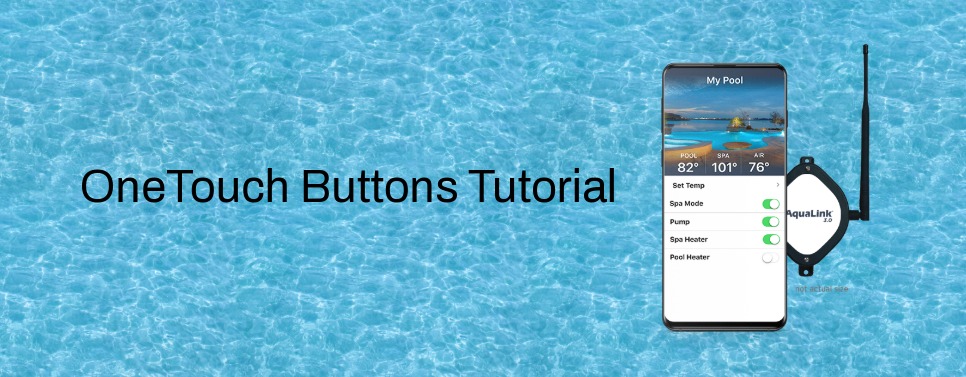
Your iAquaLink system offers a ton of customization that can make operating your pool fun and easy. Below we provide a step-by-step guide for setting up OneTouch buttons. The OneTouch buttons allow you to turn a group of features on or off with a touch of a button. For example, with one button, you can turn up the heat on your spa, turns on the blower and turn on the lights. In another example, you can touch a button to turn on all your lights – patio, pool and spa. So easy!
Detailed step-by-step directions:
Step 1: Sign into your iAquaLink.
Step 2: If you’re on your cellphone, hit Web Function to see this screen.
Step 3: Click “OneTouch.”
Step 4: Review the six OneTouch functions that you can customize.
Step 5: Click Menu.
Step 6: Click System Setup.
Step 7: Click OneTouch Setup.
Step 8: Click Set Devices.
Step 9: Click OneTouch 1.
Step 10: Click into the list of features to customize the settings. For example, click Spa Heat.
Step 11: Set your spa to the desired temperature.
Step 12: Click Enter.
Step 13: Click other features you would like to turn on with this OneTouch button. For example, you can set Air Blower and Spa Light to “on.”
Step 14: Click Back.
Step 15: Click Select Name.
Step 16: Click OneTouch 1.
Step 17: Type in your custom label. In this example, we are calling this OneTouch button “Spa.” Click Save.
Step 18: Click Home.
Step 19: Click OneTouch.
Step 20: Turn on the Spa OneTouch button to automatically turn the heater to 102 degrees, and turn on the air blower and the spa light.
Step 21: Turn program another OneTouch button, click Home.
Step 22: Click OneTouch 2.
Step 23: Click Menu.
Step 24: Click System Setup.
Step 25: Click OneTouch Setup.
Step 26: Click Set Devices.
Step 27: Click OneTouch 2.
Step 28: Click Page Down.
Step 29: Click Spa Light.
Step 30: Click Pool Light.
Step 31: Set the dimmer to your desired level (ONLY if you have a dimmer relay – problems occur when there is no dimmer relay and one chooses this setting to be “yes”).
Step 32: Click Back.
Step 33: Click Page Down.
Step 34: Click Patio Light.
Step 35: Click Back.
Step 36: Click Select Name.
Step 37: Click OneTouch2 and then Custom Label.
Step 38: Type in your custom label. In this example, we are calling this OneTouch button “Lights All On.” Click Save.
Step 39: Click Home.
Step 40: Click OneTouch.
Step 41: Turn on the Lights All On OneTouch button to automatically turn on the Patio Light, Spa Light and Pool Light.